Modes
Work, Personal or modes of your own show only the projects you pick, on this Mac. Your tasks stay the same everywhere.
A mode shows you only the projects you choose. In Work, for example, Today, Calendar, the menu bar and (if you like) notifications only show your work projects. Everything else is still there, just a click away.
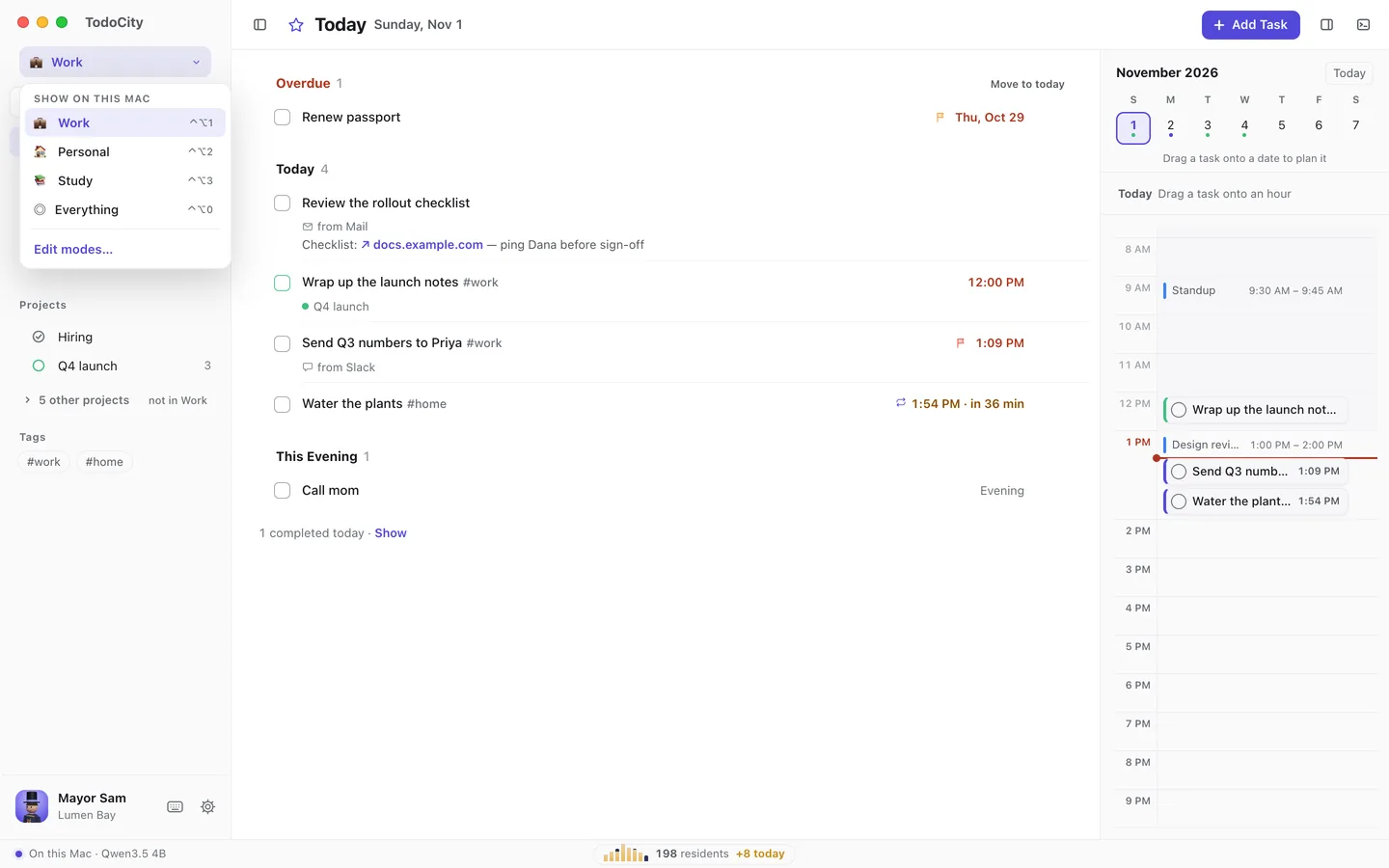
Switch modes
Click the switch at the top of the sidebar and pick a mode, or use these keys:
| Keys | Mode |
|---|---|
| ⌃⌥1, ⌃⌥2… | Your modes, in order |
| ⌃⌥0 | Everything |
While you're in a mode, a line under the list tells you how many tasks are waiting outside it, and Show lets you see them. A project's own page and search always show every task.
Work and Personal
TodoCity comes with two modes to start with:
- Work shows the Office project and tasks that aren't in a project. New tasks without a project go to Office.
- Personal shows every project except Office, including any you make later. New tasks without a project go to Home.
You can change both in Settings → Modes.
Make your own
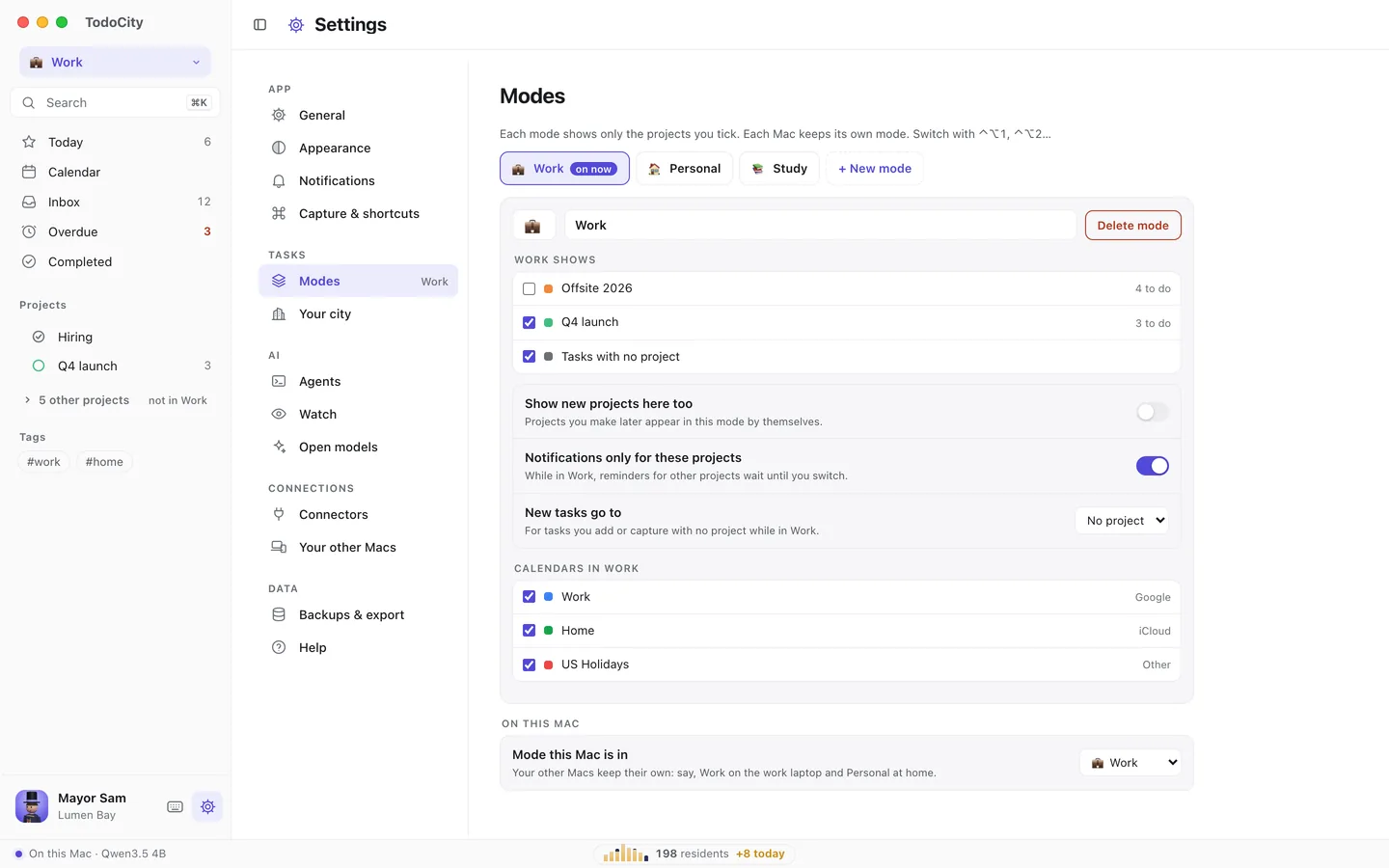
- Open Settings → Modes and click + New mode.
- Give it a name and an icon (an emoji).
- Tick the projects you want it to show, and decide whether it shows Tasks with no project.
- Choose the rest of its settings, listed below.
| Setting | What it does |
|---|---|
| Show new projects here too | Projects you make later show up in this mode automatically |
| Notifications only for these projects | While you're in this mode, reminders for other projects wait until you switch |
| New tasks go to | The project that new tasks without a project join while this mode is on |
| Calendars in Work (named after the mode) | Which calendars show while the mode is on |
To get rid of a mode, click Delete mode.
Each Mac keeps its own mode
Modes only change what you see. Your tasks are the same everywhere, and sync between your Macs keeps them up to date. Each Mac remembers its own mode, so your work laptop can stay in Work while your Mac at home stays in Personal. You can set this under On this Mac → Mode this Mac is in in Settings → Modes.