Projects and sections
Group tasks into projects, and split a project into sections. Give projects their own colors, and see one project's tasks on the calendar.
A project holds all the tasks for one goal, like “Offsite 2026” or “Q4 launch”. A section breaks a project into parts, like “Travel” and “Program”.
Start a project
- Click + next to Projects in the sidebar and give it a name. A project doesn't need any tasks to get started.
- Or type
@Namein a new task to put it straight into a project.
Add Task at the top right lets you pick the project, section, date and time right in the form.
Sections
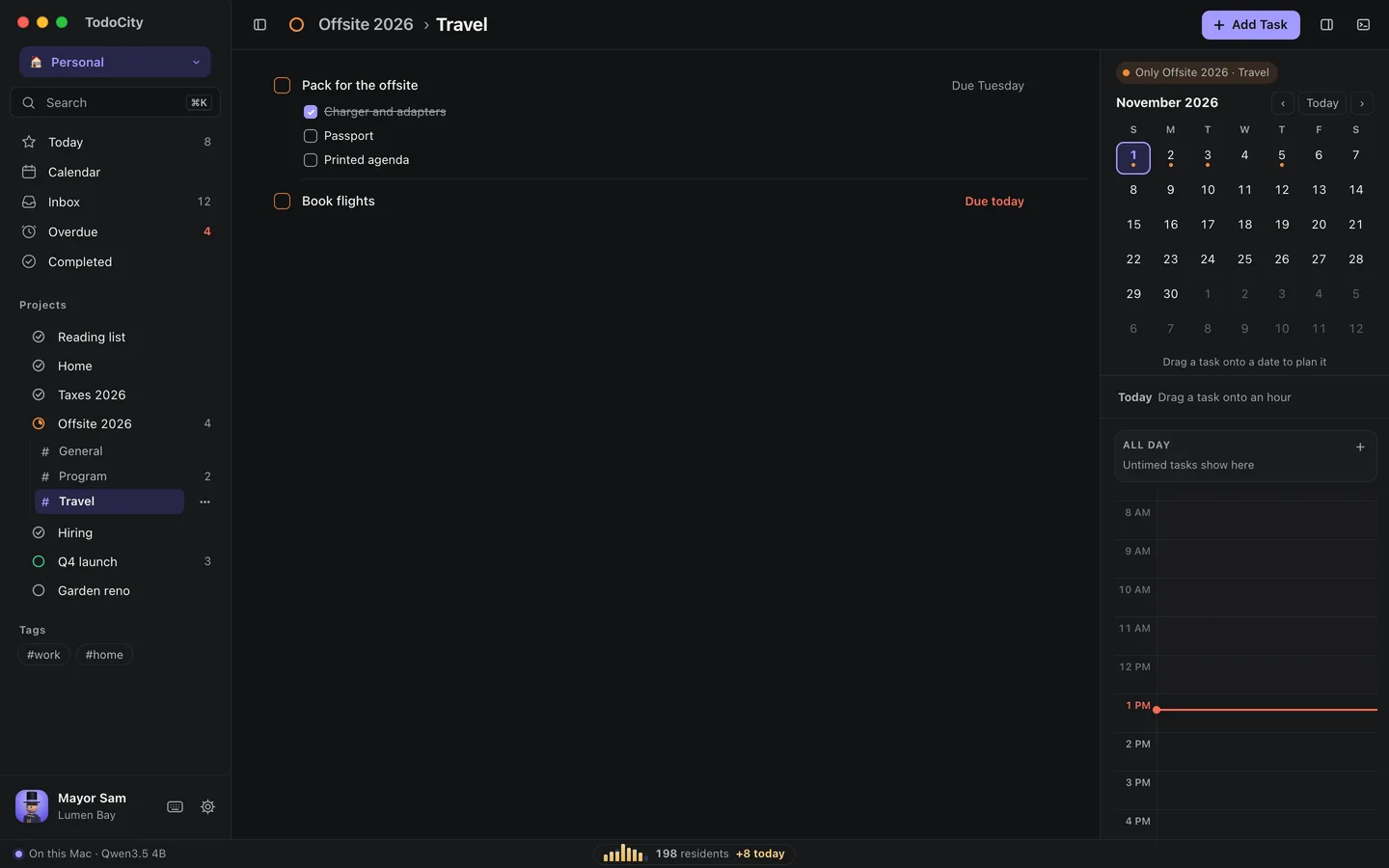
Open a project in the sidebar to see its sections, listed a bit like chat channels: # General, # Program, # Travel, each showing how many tasks are left to do. General holds any of the project's tasks that aren't in a section.
- To add a section, choose Add a section… from the project's ⋯ menu, or use + New section when you're picking where a task goes.
- Click a section to open its own page. Finished tasks stay there, crossed out, and Add Task puts new tasks straight into that section.
- Drag a task from one section to another in the project's list, or onto a project or section in the sidebar.
Give a project its own color
Choose Color from the project's ⋯ menu. Its tasks' checkboxes, calendar blocks and dots on the month all take on that color. Default color sets it back.
The calendar follows you
When you're inside a project, the month and the day's hours on the right only show that project's tasks. Inside a section, they only show that section's.
List or board
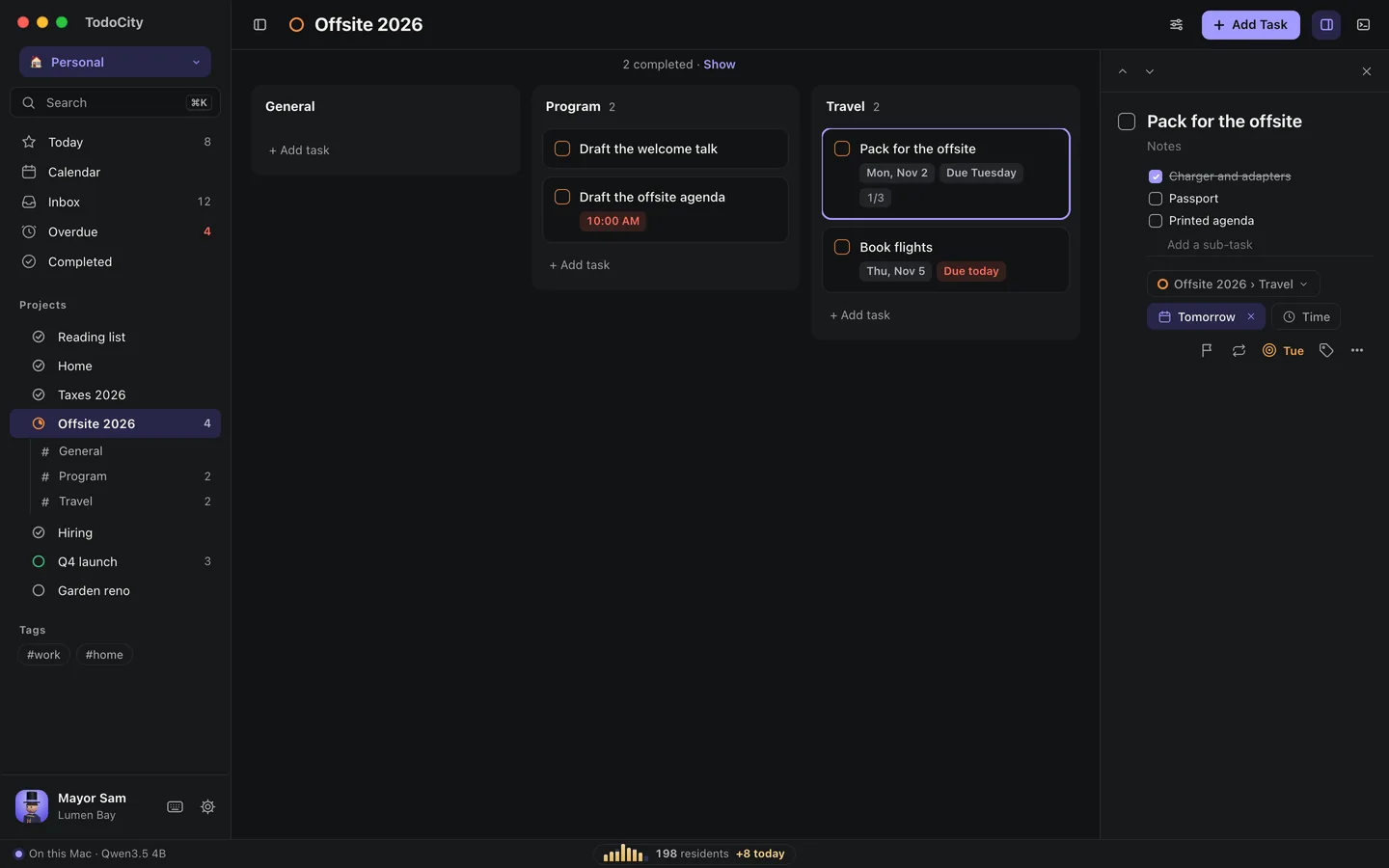
The View button at the top lets you see a project as a List or as a Board, with one column for each section.
Rename or delete
To rename, use the ⋯ menu next to a project (Rename project…) or a section (Rename section…).
Before you can delete a project or a section, you'll need to move or delete its tasks. After that, Delete project or Delete section is in the same menu.
Projects that sync
Projects that came from Todoist or Things 3 and are still syncing have Stop syncing in their ⋯ menu. If you use it, their tasks stay in TodoCity. See Connectors.
Every project also shows up as a building in your city. See Your city.