Calendar
Plan your week by the hour. See tasks beside your meetings, drag them to a day and time, set how long they take, and move your own meetings.
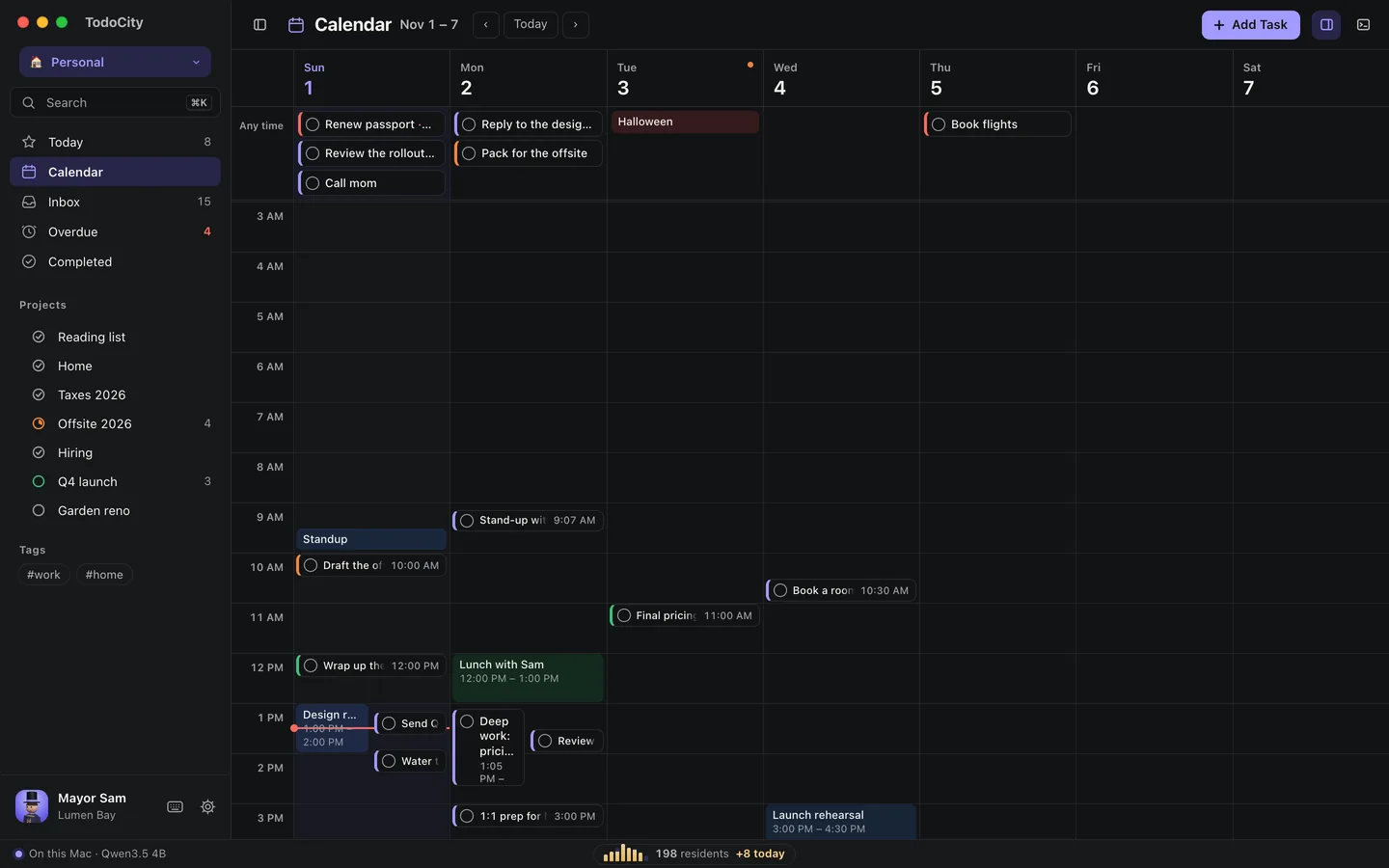
Calendar shows your whole week, hour by hour, with your tasks right beside your calendar events. Each task sits at the time it actually starts and takes up as long as it actually takes, so you can see at a glance where your time is going.
Find your way around
- Any time, at the top of each day, holds that day's tasks that don't have a time.
- This week and Next week at the top jump a week at a time, and the arrows take you to the week before or after.
- To move a day at a time, drag the row of dates sideways or swipe with two fingers. The ← and → keys work too.
- Short tasks stay neatly on one line, so point at one to see its full title. When an hour gets crowded, the extras fold into something like +2.
Plan tasks
- Drag a task to another day or time. It snaps to the nearest 5 minutes.
- Drag a task's bottom edge to make it longer or shorter.
- Click anywhere in an hour to add a task at that time.
- Tasks with no date wait beside the week. Drag one onto a day or an hour to plan it.
How long a task takes
Any task can have a length, from 1 minute up to a whole day, and it can start at any minute, like 9:07.
- Use the Length chip on the task. Pick one of the quick lengths, or type minutes like
7,45or1h30. - Or include it when you add the task: “Stand-up tomorrow 9:07 for 7 min”.
Meetings beside your tasks
Turn on Show calendar events in TodoCity in Settings → Connectors → Apple Calendar and your meetings appear alongside your tasks. They come from the calendars in your Mac's Calendar app, which includes any Google, Outlook or iCloud calendars you've added there. See Apple Calendar.
Move your own meetings
If you drag one of your own meetings to a new time or day, or stretch it, it moves in Apple Calendar as well. A note confirms the change, with Undo in case you want to put it back.
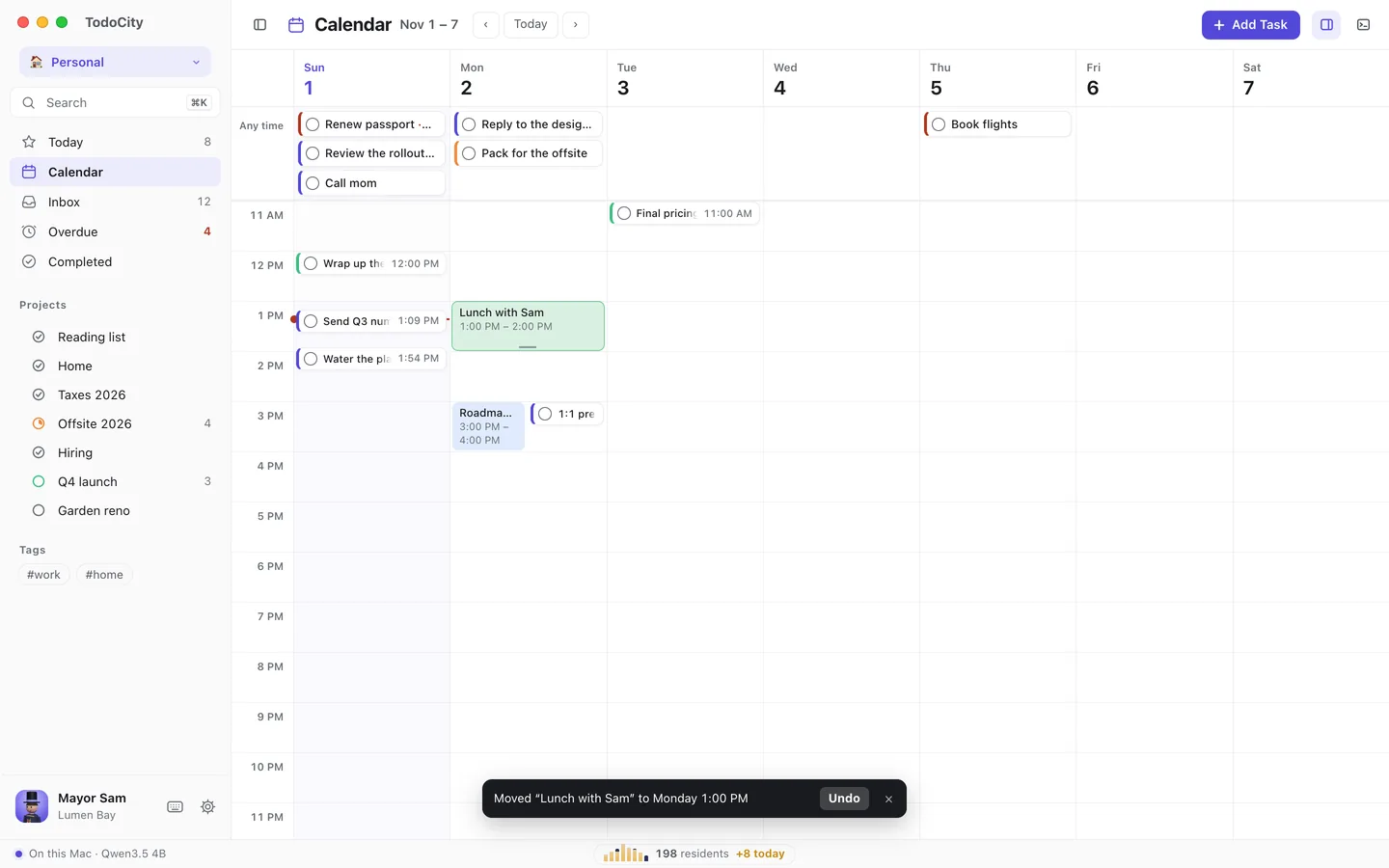
- For meetings you organize, TodoCity checks first with Move for everyone?, because your guests will get the new time.
- Invitations from other people, all-day events, read-only calendars and TodoCity's own calendars can't be moved from here, so they stay as they are in Calendar.
- For a repeating meeting, only the one occurrence you dragged moves.
The month beside your lists
In full screen, a month calendar sits to the right of your lists, and you can drag a task onto any date to plan it. When you're inside a project or a section, the month and the day's hours only show tasks from that project or section.
To show or hide this pane, use the button at the top right, or press ⌥⌘\.