Inbox, Overdue, Someday and Completed
The lists in TodoCity's sidebar. Inbox holds tasks with no project, Overdue gathers anything late, Someday keeps ideas, Completed keeps what you've done.
The lists in the sidebar each show your tasks in a different way. You'll see Today, Calendar, Inbox, Overdue and Completed, followed by your projects. Today and Calendar have pages of their own: Today and Calendar.
Inbox
Inbox holds every task that isn't in a project, grouped by when it's due:
| Group | What's in it |
|---|---|
| Today | Tasks for today, plus anything late |
| Tomorrow | Tasks for tomorrow |
| Next 7 days | The rest of the week ahead |
| Later | Everything after that |
| Someday | Tasks with no date |
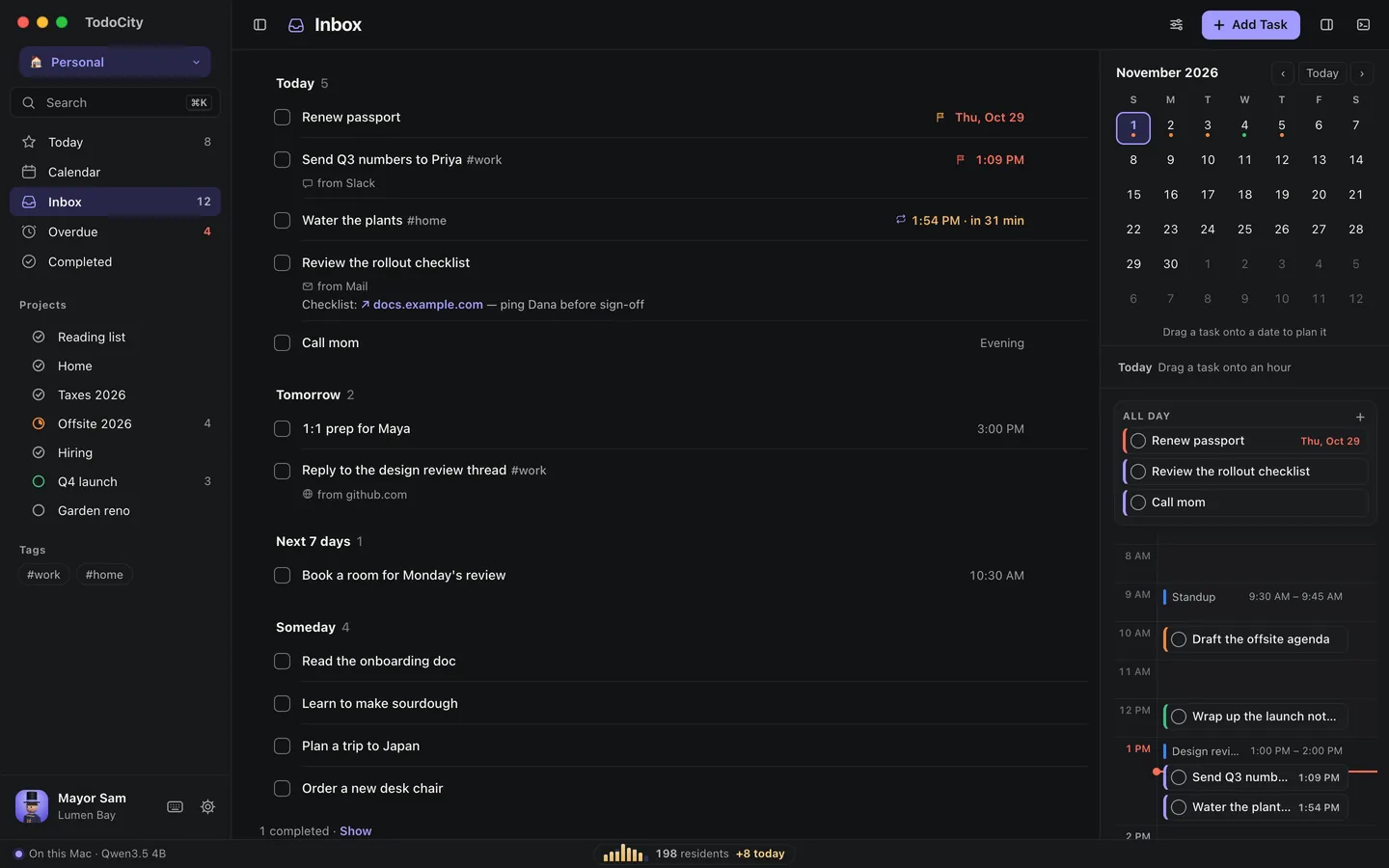
You can show Inbox as a List or a Board using the View button at the top. On the board, drag a task into another column to change its day.
Someday
Someday is the place for ideas you haven't planned yet, and it's the last group in Inbox.
- If you add a task with no date and no project, it goes straight to Someday.
- You can also pick Someday from a task's date menu, or Move to Someday from its ⋯ menu. Someday tasks stay out of Today and Calendar until you plan them.
- Paused repeating tasks wait here too.
Overdue
Overdue gathers every open task whose day, time or deadline has passed, and the sidebar shows how many there are. That gives you one place to check, rather than a banner on every screen.
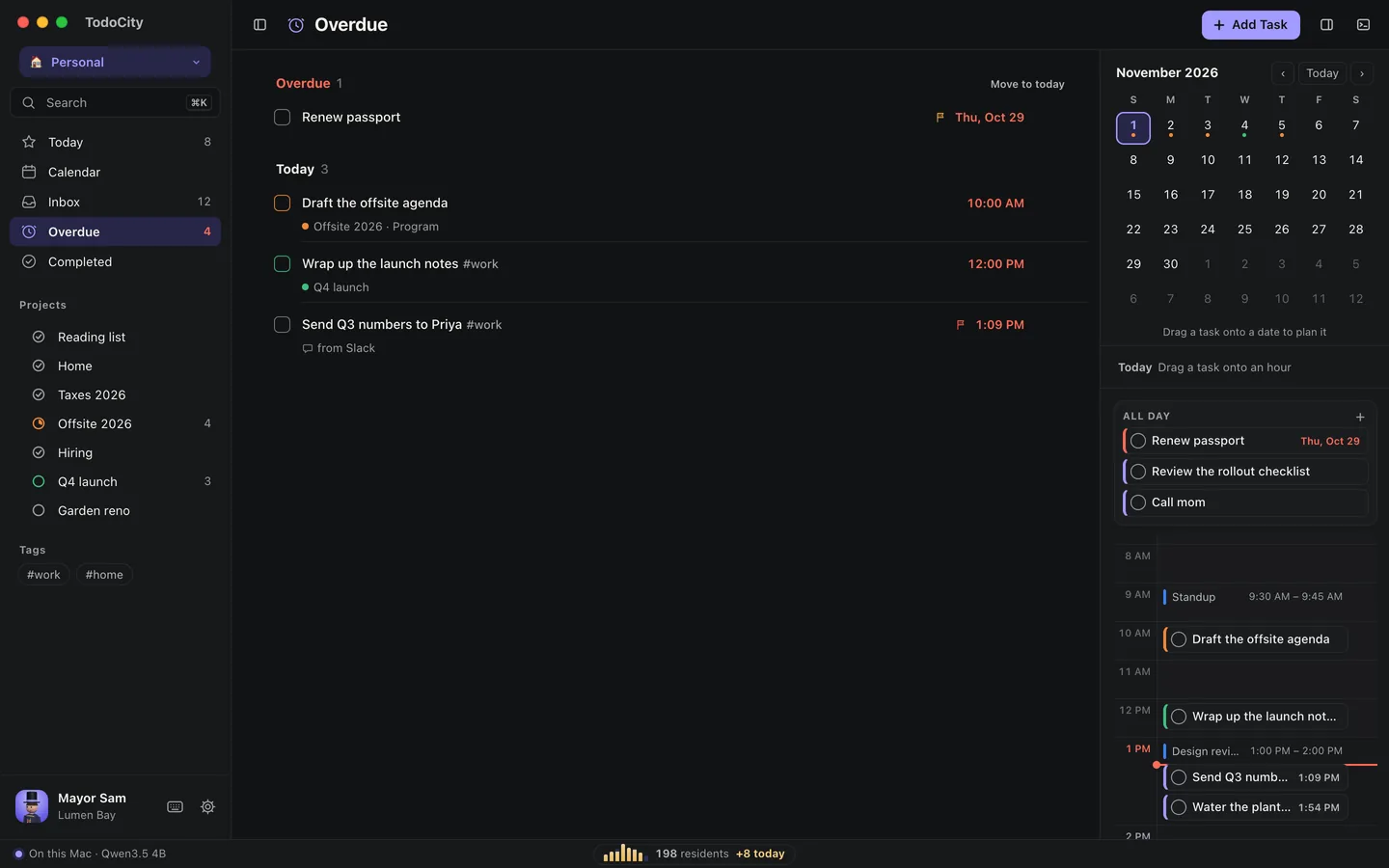
- Move to today brings them all to today in one click.
- Or drag one onto the calendar to plan it again, or just tick it off.
Someday tasks and paused tasks never count as overdue.
Completed
Completed keeps every task you've finished, with the newest at the top. Click Show earlier to go further back. If you want a task back, un-tick it and it reopens right where it was.
Finished tasks also step out of the other lists. A line like 2 completed · Show brings them back into view where they were. If you'd rather they stayed put, turn on Settings → Appearance → Show completed tasks.
With agents
With agents shows up once you've handed tasks to an AI agent. See The agent panel.