Capture text from any app
Turn an email, a message or a web page into a task. Press ⌘C twice, use the capture shortcut, right-click, or type it with Quick Add.
Capture turns text from any app into a task. The model on your Mac reads the text and writes the task and its date, then TodoCity shows you a card so you can check it before it's saved.
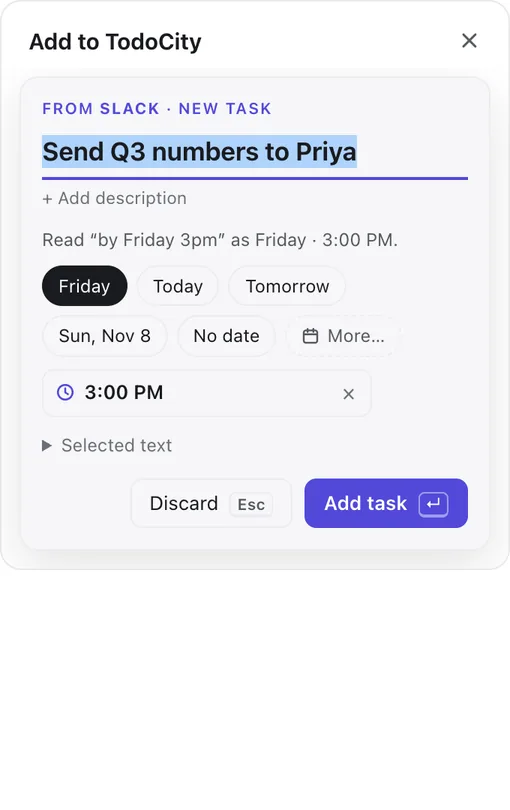
Press ⌘C twice
- Copy the text with ⌘C, like you normally would.
- Press ⌘C again straight after.
- Check the card and press Return.
This works in every app and doesn't need any permission. TodoCity only reacts when the same text is copied twice in a row, so ⌘C carries on working normally everywhere else. Anything you copy inside TodoCity itself doesn't count.
You can turn this on or off in Settings → Capture & shortcuts → Press ⌘C twice to capture.
Use the capture shortcut
Select some text and press ⇧⌘S. You don't have to copy anything.
- The shortcut reads your selection through macOS Accessibility, so you'll need to allow that once in System Settings → Privacy & Security → Accessibility. Install shows you how.
- To use a different key, go to Settings → Capture & shortcuts, click Change shortcut and press the keys you want.
- Password fields always stay private.
Right-click → Add to TodoCity
Select some text, right-click it and choose Add to TodoCity. In some apps, you'll find it under Services.
If it isn't there yet, open TodoCity from Applications once, then log out and back in. You can also switch it on in System Settings → Keyboard → Keyboard Shortcuts → Services → Text.
Quick Add
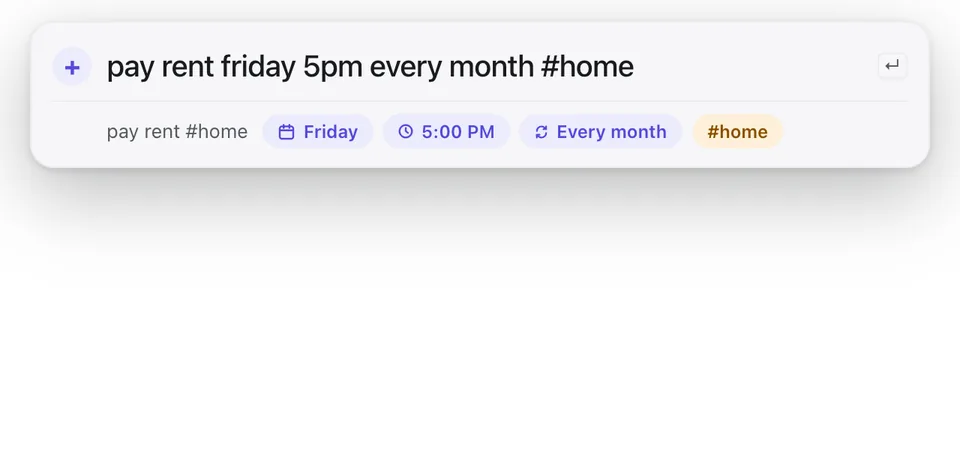
Press ⇧⌘Space from anywhere and type the task, with its date in everyday words:
pay rent friday 5pm every month #home
As you type, TodoCity shows how it's reading the date, then adds the task. This part doesn't use AI at all. Code on your Mac reads the date, as Dates and times explains.
In the app's own add field, you can type @Name to put the task straight into a project.
What happens to your clipboard
- ⌘C twice uses the text you copied. It stays on your clipboard afterwards, just like after any other copy.
- The shortcut reads your selection directly. If an app won't share its selection, TodoCity copies it for you and then puts your clipboard back the way it was. It won't touch the clipboard if something else changed it in the meantime, or if it holds images or files.
- Add to TodoCity gets the text straight from macOS and leaves your clipboard alone.
Private by default
Whatever you capture goes to the model running on your Mac, and nowhere else.
Lists become sub-tasks
If you capture a bulleted or numbered list with two or more items, each line becomes one of the task's sub-tasks.
Where the card shows
The card drops down from the TodoCity icon in the menu bar. If you'd rather review captures in the side panel, turn off Settings → Capture & shortcuts → Review captures in the menu bar.
Next up: Review a capture.