Quick start
Your first task in about a minute. The three-step tour picks your model, sets how you capture, and turns a sample message into a task.
The first time you open TodoCity, a short tour walks you through three steps: Model, Shortcut and Try it. It takes about a minute, and you can change any of it later in Settings.
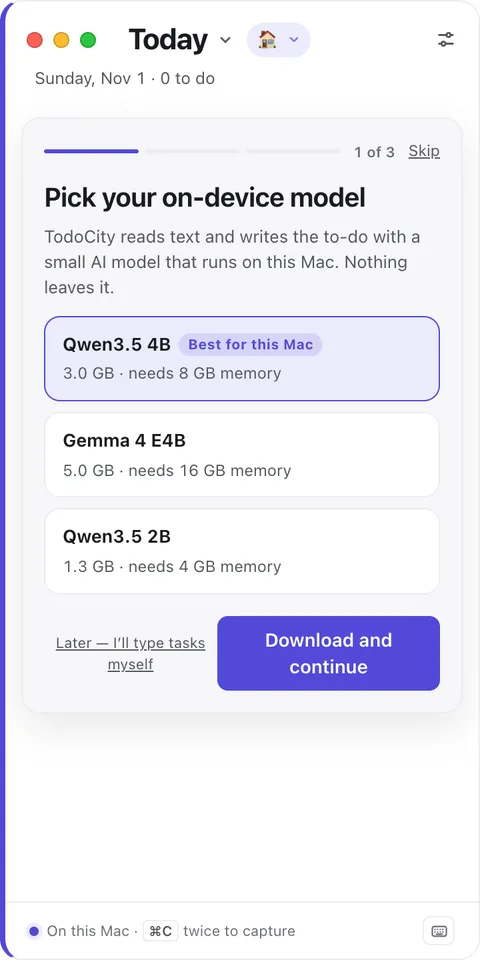
1. Model
Pick your on-device model. TodoCity uses a small AI model, running right on this Mac, to read the text you capture and write the task. The one marked Best for this Mac is the one that fits your Mac's memory.
- Click Download and continue. The model only downloads once, and you can keep going with the tour while it does.
- If you'd rather type your tasks yourself for now, click Later — I'll type tasks myself. You can add the model whenever you like in Settings → Open models.
2. Shortcut
How do you want to capture? Pick one:
- Press ⌘C twice is the easiest. Copy as you normally would, press ⌘C once more, and TodoCity picks it up. It works in every app and doesn't need any permission.
- A shortcut, like ⇧⌘S, lets you skip copying altogether: just select text and press it. For this, TodoCity needs Accessibility access, so click Allow in System Settings and turn on TodoCity. Install explains why.
3. Try it
The tour gives you a sample message to practise on:
Could you send me the Q3 numbers by Friday 3pm? Thanks!
- Select the message, then press ⌘C twice (or your shortcut).
- Check the card that drops down from the menu bar. TodoCity has written the task and understood “by Friday 3pm” as Friday at 3:00 PM.
- Press Return. That's your first task in TodoCity.
Rather not select anything? Click Or just use the sample instead. When you're done, click Start using TodoCity.
If the model is still downloading, or you chose Later, the card opens for you to fill in yourself this time. Everything else works exactly the same.
Note
Once you finish the tour, macOS asks whether TodoCity can send you notifications. Say yes if you'd like reminders when tasks are due. More in Notifications.
Next steps
- Capture textAll the ways to turn text into a task.
- TodayWhere your tasks show up, and how to plan your day.
- Your cityEvery project becomes a building. Name your city and meet the mayor.
Want to see the tour again? It's in Settings → Help → The tour.